
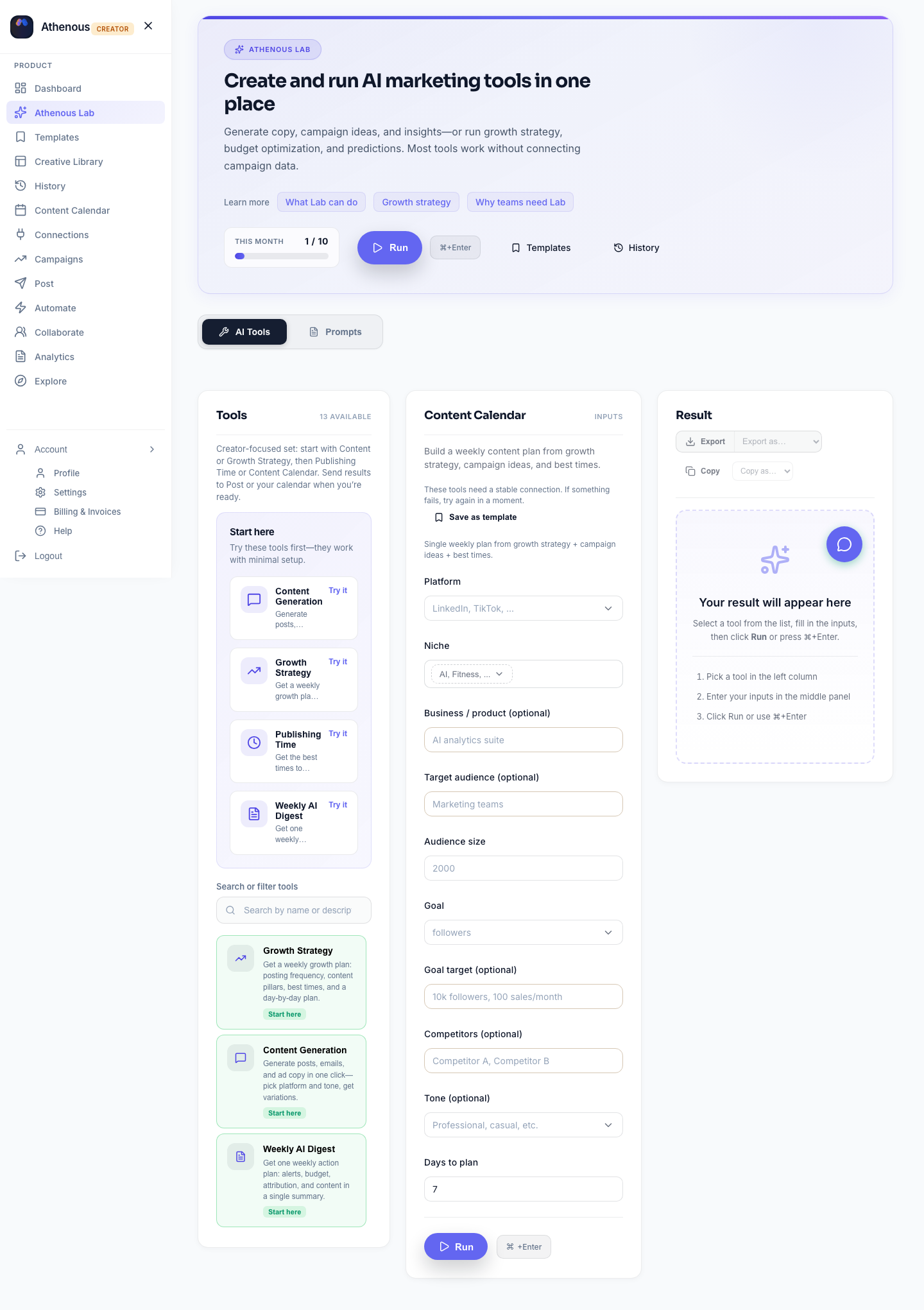
A content calendar keeps you consistent, but filling it can feel like staring at a blank page. An AI content generator for social media can suggest themes, angles, and even first-draft copy so you spend less time brainstorming and more time refining and publishing. In Athenous Lab, the Content Calendar tool does the planning for you: choose your platform (e.g. LinkedIn, TikTok), niche, and number of days (1–14), and get a weekly plan with content pillars, day-by-day slots, and suggested posting times—then use the content generator to turn each slot into copy. Pair it with the AI social media scheduler (Post) to plan and publish from one place.
Why use a content calendar with AI?
Posting on a regular schedule is one of the strongest drivers of reach and engagement, but planning that schedule manually is time-consuming. You have to decide what to post, when to post it, and how to balance themes—and then still come up with the actual copy. A content calendar with AI flips the workflow: the AI suggests themes (pillars), maps them to days, and recommends best times based on your platform and audience. You then focus on turning each slot into strong copy instead of staring at an empty grid.
Benefits of combining a content calendar with AI:
- No more blank-page syndrome: You get a structured week (or two) of topics and times so you always know what to create next.
- Consistent mix: Pillars (e.g. product updates, how-tos, customer stories) are spread across the week so your feed stays balanced.
- Best times built in: The plan can include suggested posting times so you’re not guessing when your audience is online.
- One place from plan to publish: In Athenous, the same Lab that generates the calendar can generate first-draft copy for each slot; then you send it to Post to schedule and publish.
Step 1: Open the Content Calendar tool in Athenous Lab
In Athenous Lab, open AI Studio and select the Content Calendar tool from the list. You’ll see a form where you set the inputs the AI uses to build your weekly plan.
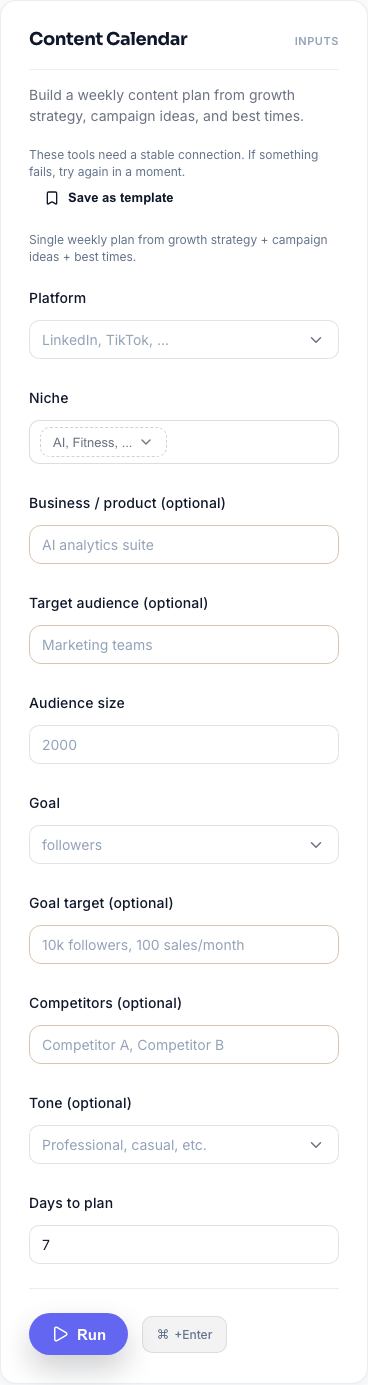
Fill in:
- Products – The channel you’re planning for (LinkedIn, TikTok, Instagram, etc.). The AI tailors pillars and best times to that platform.
- Niche – Your vertical (e.g. AI, fitness, B2B SaaS). This keeps themes relevant to your audience.
- Business / product (optional) – A short description of what you do or sell so ideas stay on-brand.
- Target audience (optional) – Who you’re talking to (e.g. marketing teams, small business owners).
- Goal – What you’re optimizing for: followers, sales, or engagement. Default is followers.
- Audience size – Your current follower or audience size (default 2000). The AI can use this for posting frequency and timing.
- Days to plan – How many days to include in the plan (1–14). A 7-day plan is typical for a weekly calendar.
Click Run (or the equivalent action in your app). The AI combines growth strategy, campaign ideas, and best posting times to produce one consolidated plan.
Step 2: Review your weekly plan (pillars, slots, times)
The tool returns a structured output: content pillars (themes for the week), a calendar_week array with one entry per day, and for each day one or more slots with a topic and suggested time. You may also see posting frequency and which campaign ideas were used.

Use this output as your skeleton: note which pillar each slot belongs to, and the suggested times. You can copy the plan into a doc, or keep it in Lab and move to the next step—generating first-draft copy for each slot.
Step 3: Set themes and pillars (and refine if needed)
The Content Calendar already suggests pillars and slots; you can use them as-is or refine. If you want to go deeper, define a few content pillars yourself (e.g. product updates, how-tos, customer stories) and map them to days or weeks. Use the AI to generate more topic ideas within each pillar—e.g. “10 blog ideas for a B2B project management tool under the pillar ‘productivity tips.’” Pick the best and slot them into the calendar. In Lab, you can run the Content Calendar again with different inputs, or layer in the content generator to expand individual topics.
Step 4: Generate drafts for each slot
For each scheduled topic, open the content generator in Lab and prompt with the pillar, audience, and format (blog, post, email). Example: “LinkedIn post for Tuesday slot: topic ‘productivity tips for remote teams,’ professional tone, 120 words, include a question to boost engagement.” Use the output as a first draft: edit for voice and accuracy, then add it to your scheduler. You’re not publishing raw AI; you’re using it to get past the blank page.
Step 5: Send to Post and schedule
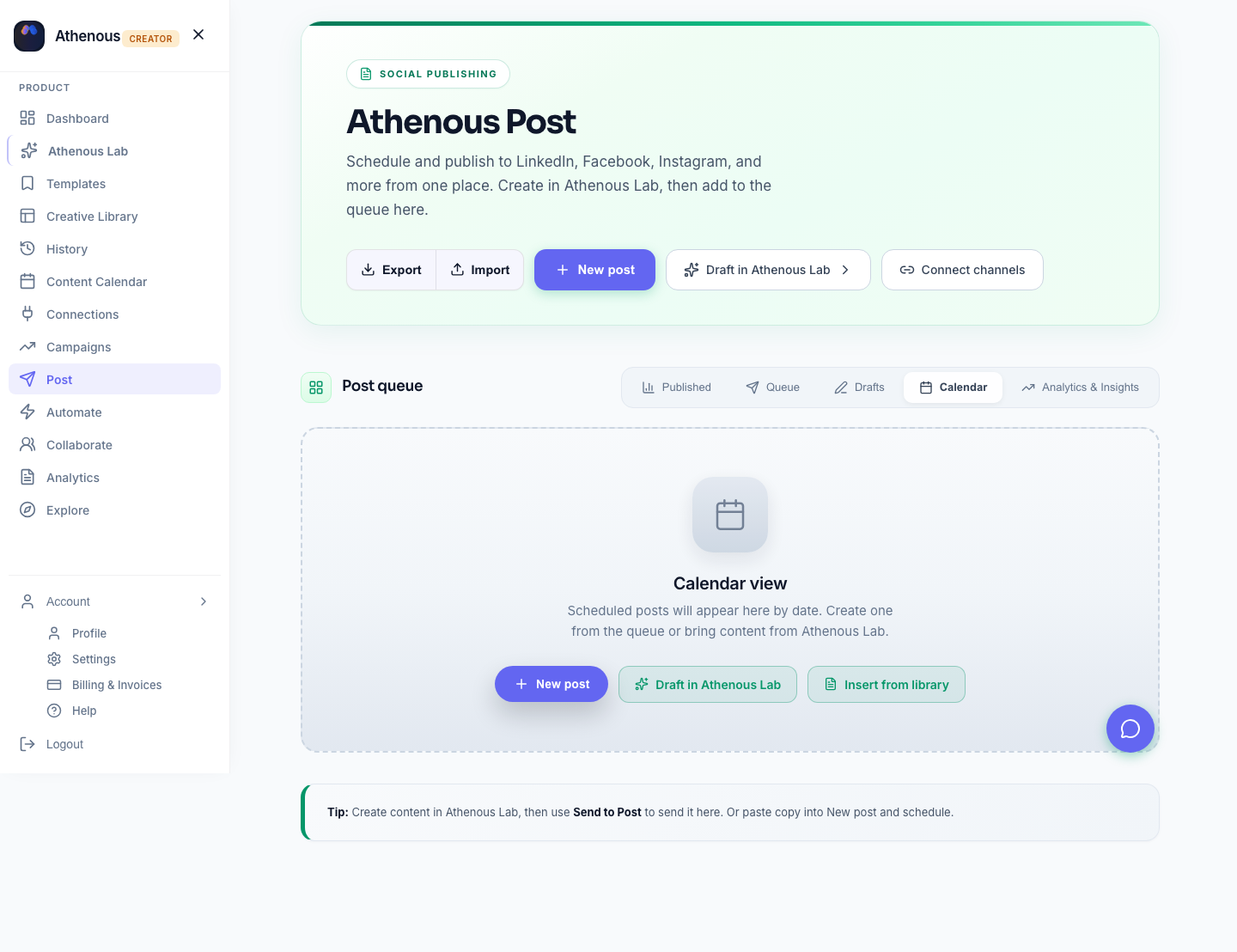
Once you have copy for each slot, add the posts to Post (Athenous’ AI social media scheduler). Create one scheduled item per piece of content: paste the copy, set the date and time (using the suggested times from the Content Calendar if you like), and assign the channel(s). Your calendar flows from Lab to Post so you can publish without switching tools.
Reuse and repurpose
When a piece performs well, add a calendar slot to repurpose it—e.g. blog to social snippets, or one post into a short email. An AI social media post generator can help turn one asset into multiple formats so your calendar stays full without reinventing the wheel. Try Athenous to generate and schedule in one workflow.
Frequently asked questions
How does the Content Calendar tool work in Athenous Lab?
Open the Content Calendar tool in Lab, choose your platform (e.g. LinkedIn, TikTok), niche (e.g. AI, fitness), and how many days to plan (1–14). The AI combines growth strategy, campaign ideas, and best posting times to return a weekly plan with content pillars, day-by-day slots, and suggested times. Use the content generator next to turn each slot into first-draft copy.
Can I send my content calendar to the scheduler?
Yes. After you build your plan in Lab, generate copy for each topic, then add the posts to Post (Athenous’ scheduler) with dates and times. Your calendar flows from Lab to Post so you can publish without switching tools.
Try Athenous for free
Generate content, schedule posts, and automate your workflow in one place. Start with a free trial—no credit card required.
Build your content calendar in Lab